Get a File Drop Box Email Address
First of all, you need to create a folder and check the checkbox "This is a File Drop Box folder".
If you have already created a
"File Drop Box" folder, you can simply log in to DriveHQ.com website, then from the DriveHQ Start Menu,
click "File Drop Box", you will see a list of "File Drop Box" folders in your account.
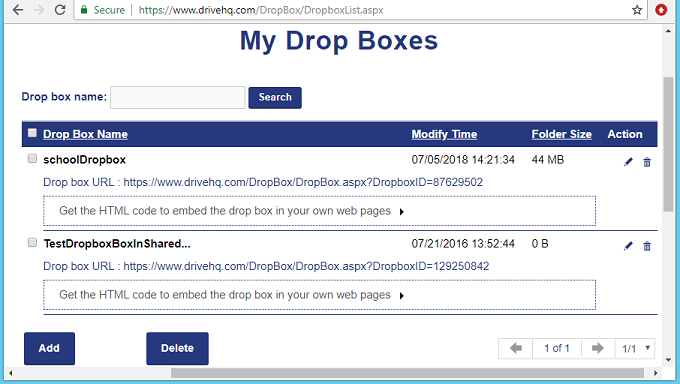
Manage File Drop Box Folders
Click a "File Drop Box" name, you will see the Edit "File Drop Box" page as shown below. The "File Drop Box" email address can be found in
this page.
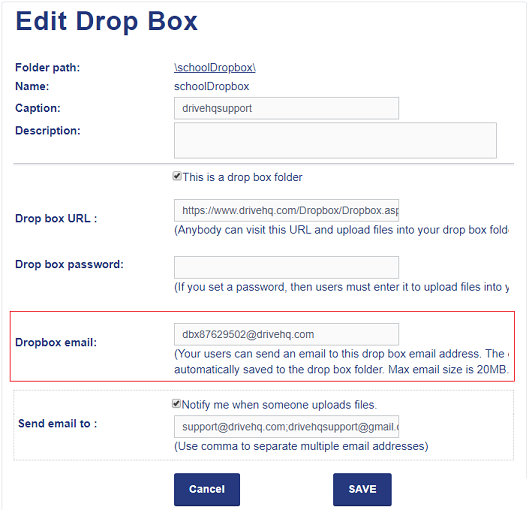
My File Drop Box Folder List
To receive files, you just need to ask other users to send emails to the File Drop Box email address.
There are two versions of "File Drop Box" email addresses:
(1): dbx*********@*******.com (As shown in the screenshot above).
If a person sends an email with attachments to this email address, the system will automatically create a subfolder in
the File Drop Box folder.
The subfolder name is the sender's email address.
The files attached in the email are automatically saved to the subfolder. This way, if multiple
people send emails to the File Drop Box, the attached files will be saved to different subfolders.
This method can also prevent file overwriting if multiple people email files with the same names.
(2): dbxd*********@*******.com (Note: just replace "dbx" with "dbxd"). If you use this email address,
the system will not create subfolders.
Attached files will be directly saved to the File Drop Box folder. So please make sure
the attached files use different names. Otherwise, file overwriting may occur.
The Email
File Drop Box feature can work with many scanners (e.g. Ricoh printers).You can configure your scanner/printer to
automatically email the scanned documents to a
File Drop Box email address, then the files will be saved to
your DriveHQ cloud folder and you can access the cloud files using Windows File Explorer (with DriveHQ Cloud Drive Mapping Tool).