Features - Email Drop Box

Email Drop Box: auto save attachment files in a folder

DriveHQ's Email Drop Box feature is an extension of the File Drop Box feature. A File Drop Box is like a mail drop box at a post office, enabling anyone to quickly and securely upload files to you. Simply share the File Drop Box URL, and users can upload files directly to the folder without creating an account or signing in.

It is designed for you to receive files from anybody, incl. potential clients, unknown users, one-time users, or too many users that you cannot enter all their email addresses.

With the Email Drop Box feature, anybody can upload files into a File Drop Box folder via email attachments!

Email Drop Box diagram - auto save attachment files to folder
Receive files via email. Auto save/organize attachment files in a cloud file server

Email Drop Box Details

  • A Unique Email Address for Each File Drop Box Folder

    When you create a File Drop Box folder, it is automatically assigned with a unique email address. Non-DriveHQ members can upload files into the Drop Box folder by sending an email with the attached files.

  • Attachment Files Are Automatically Saved and Organized in the File Drop Box Folder

    When an email is sent to the File Drop Box email address, DriveHQ's email server can automatically parse the email, extract the attached files and save them in the File Drop Box folder. Files will be automatically organized into subfolders based on the sender email address.

  • Anybody Can Securely Upload Files into Your File Drop Box Folder

    They just need to send an email to the File Drop Box Email Address. They cannot see files in the File Drop Box folder. You (as the File Drop Box owner) have full access to the folder.

  • Unlimited File Drop Box Folders

    There is no limit to the number of folders you can turn into File Drop Boxes in your account.

  • Synchronized File Drop Box Folders

    Create a synchronization task in DriveHQ FileManager to sync your File Drop Box folder. You can access files uploaded to the cloud-based File Drop Box folder in the synchronized local folder.

  • File Upload Notifications

    You can assign email addresses to be notified when files are uploaded to a File Drop Box folder.

  • More Automatic Email Processing

    Email File Drop Box folder is a small feature of DriveHQ's email system. DriveHQ can support more advanced automatic email processing. For example:

    - IP cameras can email image/video files to a special Camera Email Address. The attached files can be automatically organized into a Camera Folder.

    - Some scanners can be configured to email scanned image/PDF files to a File Drop Box email address. The attached files can be automatically saved to the cloud file server.

    - If you have any other automatic email processing needs, please contact us.

  • Get a File Drop Box Email Address

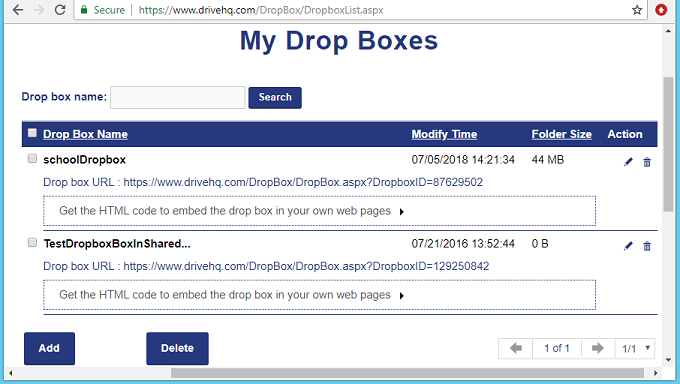
    First of all, you need to create a folder and check the checkbox "This is a File Drop Box folder". If you have already created a File Drop Box folder, you can simply log on to DriveHQ.com website, then from the DriveHQ Start Menu, click "File Drop Box", you will see a list of File Drop Box folders in your account.

    My Drop Box List / Manage My Drop Box Folders
    Manage File Drop Box Folders

    Click a File Drop Box name, you will see the "Edit File Drop Box" page as shown below. The File Drop Box email address can be found in this page.
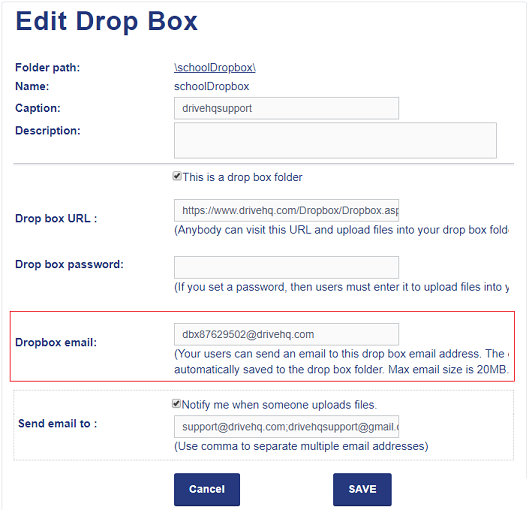
    My Drop Box List / Manage My Drop Box Folders
    My File Drop Box Folder List

    To receive files, you just need to ask other users to send emails to the File Drop Box email address.

    There are two versions of File Drop Box email addresses:

    (1): dbx*********@*******.com (As shown in the screenshot below). If a person sends an email with attachments to this email address, the system will automatically create a subfolder in the file drop box folder. The subfolder name is the sender's email address. The files attached in the email are automatically saved to the subfolder. This way, if multiple people send emails to the drop box, the attached files will be saved to different subfolders. This method can also prevent file overwriting if multiple people email files with the same names.

    (2): dbxd*********@*******.com (Note: just replace "dbx" with "dbxd"). If you use this email address, the system will not create subfolders. Attached files will be directly saved to the file drop box folder. So please make sure the attached files use different names. Otherwise, file overwriting may occur.

    The Email File Drop Box feature can work with many scanners (e.g. Ricoh printers). You can configure your scanner/printer to automatically email the scanned documents to a file drop box email address, then the files will be saved to your DriveHQ cloud folder and you can access the cloud files using Windows File Explorer (with DriveHQ Cloud Drive Mapping Tool).


DriveHQ File Drop Box Online Help

DriveHQ File Drop Box Online Help