File Drop Box - Enable anybody to upload files to you securely
DriveHQ’s File Drop Box Folder feature is very different from dropbox.com service.
Simply put, it enables your customers, clients and partners to
upload files to you instantly, without having to log in or sign up.
You just need to create a File Drop Box folder and send its URL to them.
Your clients can click the URL.
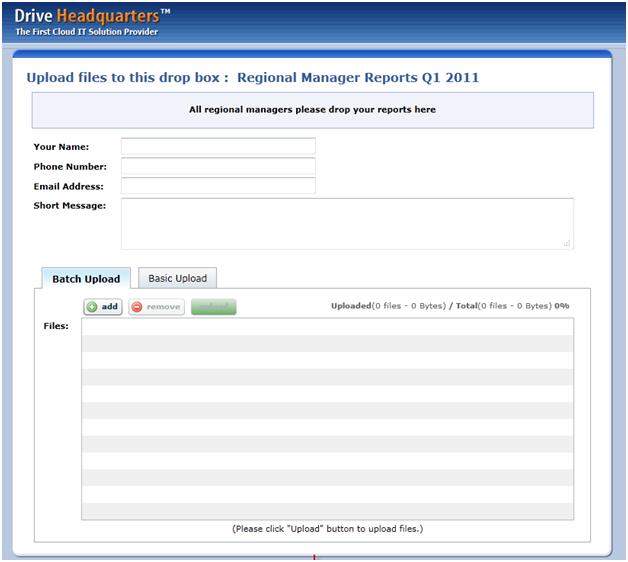
It will display the File Drop Box page as shown below.
They can then upload files to you securely.
Creating a new File Drop Box folder
First, you need to select a folder you want other people to drop files. You can choose an existing folder or create a new one.
For this example, we will create a new folder.
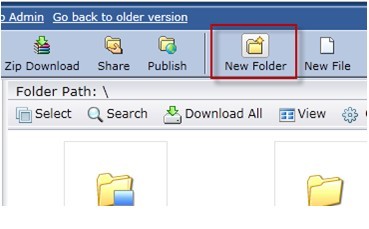
Click the "New Folder" button to create a new folder.
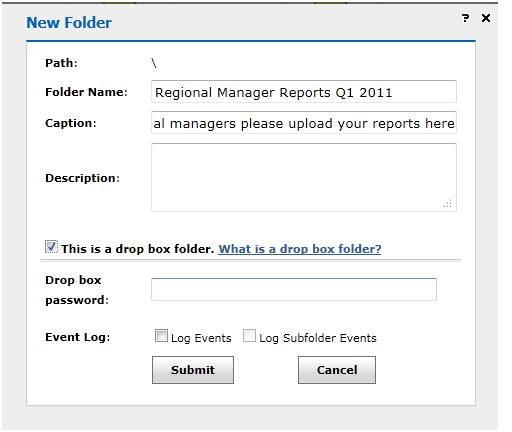
Check "This is a file drop box folder"
Type in a folder name. The caption and description fields are optional.
You can fill them if you want to display some information to your uploaders.
Check the checkbox of “This is a file drop box folder".
You can password protect the File Drop Box so that spammers cannot upload files into it.
By default, it is not password-protected so that anyone can upload files into it.
(Note: a File Drop Box is always secure as it is an upload-only folder.
Users can upload files into it, but cannot see or access files in it.)
Click Submit to finish. The new File Drop Box folder is created in your cloud storage.
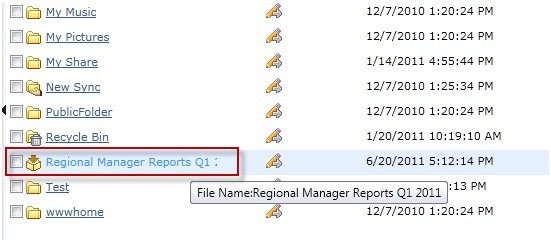
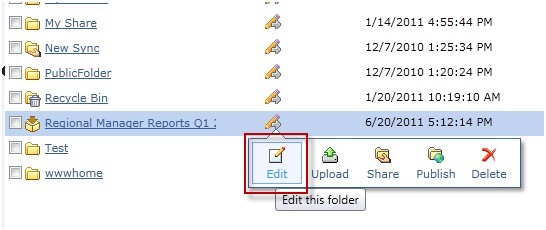
To edit the File Drop Box or view its URL, hover over the Action icon and select "Edit".
Uploading (dropping) files into a File Drop Box
To upload files into a File Drop Box, copy and paste the File Drop Box URL into your web browser.You can give the File Drop Box URL to anybody or even put it on your website.Anybody can securely upload files to you using the File Drop Box URL.
If the File Drop Box is password protected, the user will be prompted to enter the password.Otherwise, it will display the File Drop Box page directly.Please note the files dropped into a File Drop Box is always secure even if it is not password-protected.A File Drop Box folder is an upload-only folder for all users except the folder owner.Setting a password to a File Drop Box can prevent unauthorized people from dropping files into the folder.
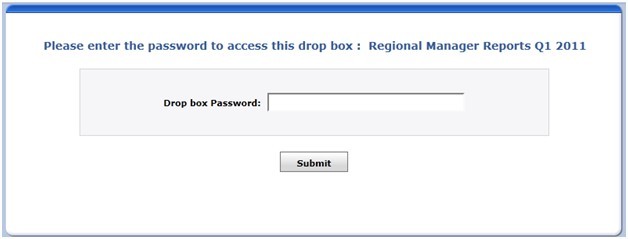
Accessing a password-protected File Drop Box folder
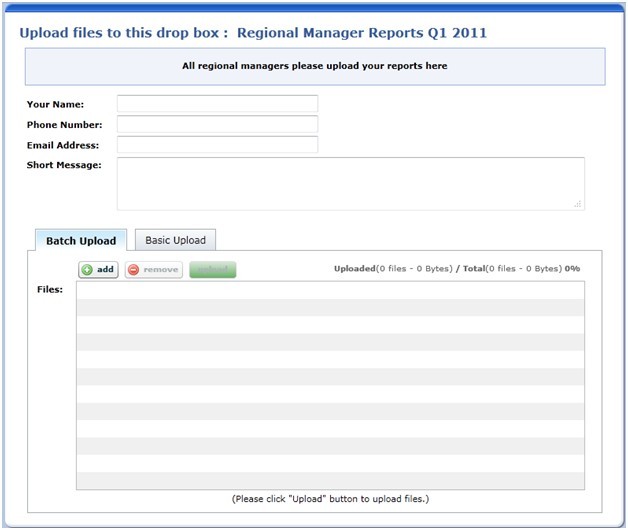
Accessing a File Drop Box page without a DriveHQ account
In the File Drop Box page, only the name field is required. It will be used for a new folder name that will be
created to store the uploader’s files. The phone number, email address, and short message fields are optional,
but we recommend providing them so the folder owner can identify who uploaded the files.
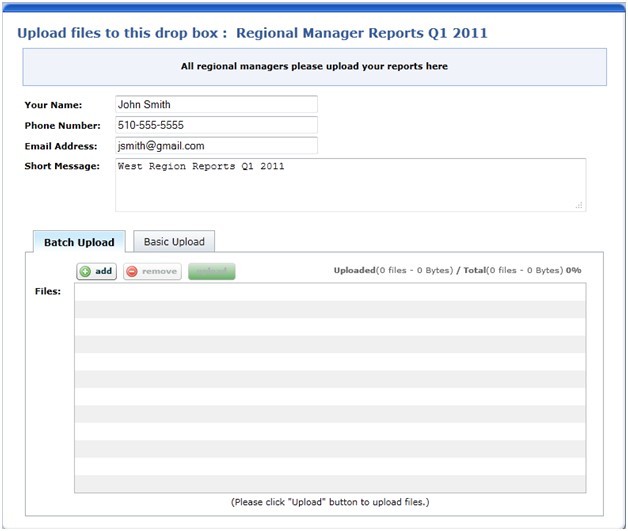
To upload multiple files, click "Add".
you can select multiple files by holding the Ctrl or Shift key.
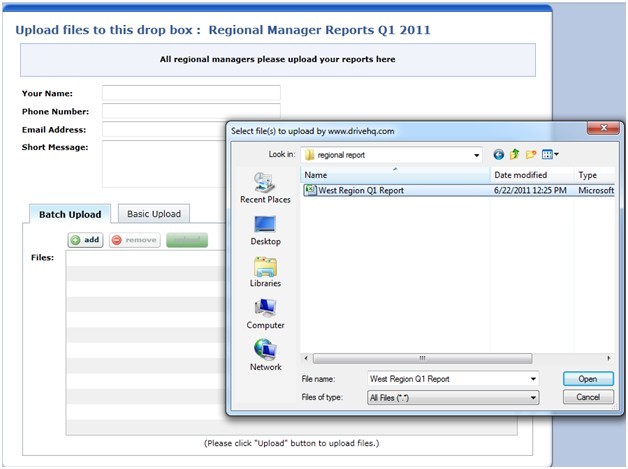
After selecting the files to upload, click the "Upload" button.
When the upload is completed, a confirmation message will appear.
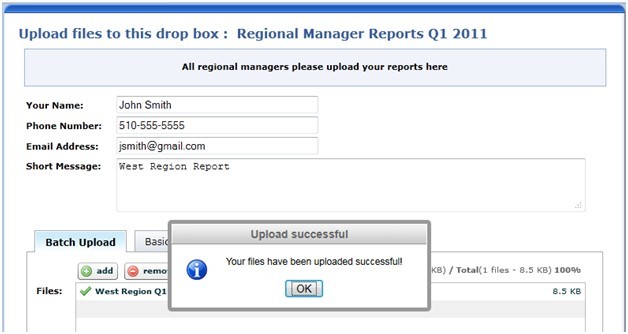
Accessing Files Uploaded to a File Drop Box Folder
Only the File Drop Box owner can access files in it. Other users can upload files only.
To access files that have been uploaded to a File Drop Box folder,
just visit the File Drop Box folder in "My Storage".
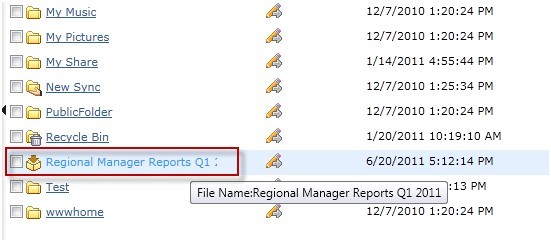
There is a new folder named “John Smith” (the folder name matches the name typed into the name field).
Note: if two people with the same name upload files to the same File Drop Box folder,
their files will be saved in two separate subfolders.
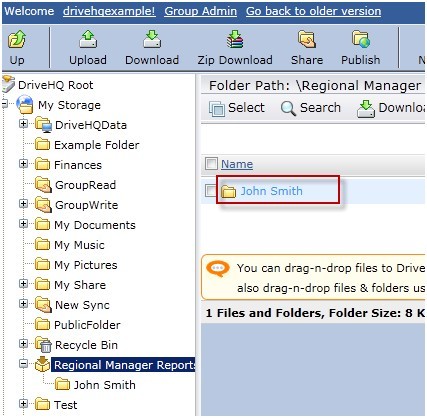
Inside the folder you will see all files uploaded by John Smith. Because John included his email address,
phone number, and short message with the upload, they will appear as captions at the top.

DriveHQ’s File Drop Box Folder feature is very powerful:
- Anybody can upload files to you. DriveHQ membership is not needed. This makes it extremely easy for you to receive files from many people.
- Files uploaded into a File Drop Box are secure.Nobody can access files in a File Drop Box folder except the folder owner.
- A user can create any number of File Drop Box folders for different groups of people;
- A File Drop Box page can be customized. You can even host it in your own webpage.
- When a new file is dropped into your File Drop Box folder,
the system can send an automatic notification email to you.
- Because a File Drop Box folder is just a special folder, it has all regular folder features. For example:
you can share it with other people and set different permissions, or synchronize it with a local folder.
- If you just want to drop files for yourself. You can use DriveHQ’s cloud file server service.
You can upload files to your own account and access them from anywhere on any devices.